CentOS 7 系统操作命令
介绍在 CentOS 7 中,对系统操作的一些命令。
1. 显示系统版本
[root@centos7 ~]# cat /etc/redhat-releaseCentOS Linux release 7.6.1810 (AltArch)
2. 显示系统内核版本
[root@centos7 ~]# uname -r3.10.0-957.el7.centos.plus.i686
3. 显示系统位数
[root@centos7 ~]# uname -mi686
4. 系统环境变量 PS1
注意:系统环境变量名字都为大写,在系统任何地方都可以使用。
系统环境变量PS1用于控制命令行的样式。
读取变量内容:
[root@centos7 ~]# echo $PS1[\u@\h \W]\$
输出参数介绍:
\u表示当前用户名\h表示当前主机名\W表示当前位置(相对路径)
改写变量:
例如,在
PS1变量中添加参数\t它表示当前时间,操作如下:[root@centos7 ~]#PS1='[\u@\h \W \t]\$'[root@centos7 ~ 16:34:34]#[root@centos7 ~ 16:34:37]#
5. 网络管理器
在 CentOS 7 中使用nmtui命令进入网络管理器。
nmtui
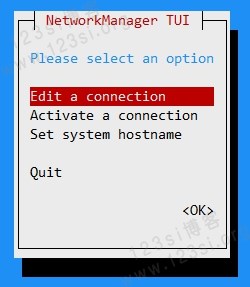
在 CentOS 6 中使用setup命令进入网络管理。
6. 查看或修改主机名
使用cat命令,查看hostname文件,获取系统主机名。
[root@centos7 ~]# cat /etc/hostnamecentos7[root@centos7 ~]#
在 CentOS 7 中主机名的配置文件被更改为/etc/hostname
永久修改主机名的方法:
hostnamectl set-hostname centos7
上面命令中centos7是设置的新主机名。
7. 查看系统内存
使用free命令,查看系统内存使用情况。或者,使用cat /proc/meminfo命令,查看系统内存更多的信息。
[root@centos7 ~]# freetotal used free shared buff/cache availableMem: 1018476 65480 779020 7024 173976 796784Swap: 2932732 0 2932732[root@centos7 ~]#
加-h参数,显示人类可读的输出。
[root@centos7 ~]# free -htotal used free shared buff/cache availableMem: 994M 64M 760M 6.9M 169M 777MSwap: 2.8G 0B 2.8G[root@centos7 ~]#
8. 查看系统 CPU
使用lscpu命令,查看系统 CPU 信息。或者,使用cat /proc/cpuinfo命令,查看系统 CPU 更多的信息。
[root@centos7 ~]# lscpuArchitecture: i686CPU op-mode(s): 32-bitByte Order: Little EndianCPU(s): 2On-line CPU(s) list: 0,1Thread(s) per core: 2Core(s) per socket: 1Socket(s): 1Vendor ID: GenuineIntelCPU family: 6Model: 28Model name: Intel(R) Atom(TM) CPU N270 @ 1.60GHzStepping: 2CPU MHz: 800.000CPU max MHz: 1600.0000CPU min MHz: 800.0000BogoMIPS: 3191.70L1d cache: 24KL1i cache: 32KL2 cache: 512KFlags: fpu vme de pse tsc msr pae mce cx8 apic sep mtrr pge mca cmov pat clflush dts acpi mmx fxsr sse sse2 ss ht tm pbe constant_tsc arch_perfmon pebs bts aperfmperf eagerfpu pni dtes64 monitor ds_cpl est tm2 ssse3 xtpr pdcm movbe lahf_lm dtherm[root@centos7 ~]#
9. 查看系统负载
使用cat /proc/loadavg命令,查看系统负载信息。或者,使用w命令,查看更多系统负载信息。
[root@centos7 ~]# cat /proc/loadavg0.00 0.01 0.05 1/116 4999[root@centos7 ~]# w16:45:02 up 7:22, 1 user, load average: 0.00, 0.01, 0.05USER TTY FROM LOGIN@ IDLE JCPU PCPU WHATroot pts/0 192.168.1.199 09:33 6.00s 0.51s 0.02s w[root@centos7 ~]#
其中包含 3 个时间段的系统平均负载:
- 第一个
0.00表示最近 1 分钟负载; - 第二个
0.01表示最近 5 分钟负载; - 第三个
0.05表示最近 15 分钟负载;
系统负载最高值与系统 CPU 总核心数一致。例如,有 2 路(CPU),每路有 4 核心,则最高负载值为 8 。
10. 查看系统挂载
使用df -h命令,查看系统挂载信息。或者,使用cat /proc/mounts或findmnt命令,查看更多系统挂载信息。
[root@centos7 ~]# df -hFilesystem Size Used Avail Use% Mounted on/dev/mapper/centos-root 89G 1.1G 84G 2% /devtmpfs 487M 0 487M 0% /devtmpfs 498M 0 498M 0% /dev/shmtmpfs 498M 6.9M 491M 2% /runtmpfs 498M 0 498M 0% /sys/fs/cgroup/dev/sdb2 2.7G 106M 2.5G 5% /boot/dev/mapper/centos-home 28G 45M 26G 1% /home/dev/mapper/centos-var 19G 154M 18G 1% /vartmpfs 100M 0 100M 0% /run/user/0[root@centos7 ~]#
11. 查看系统软件
查看已安装的软件。
使用
rpm命令,加-qa参数。[root@centos7 ~]# rpm -qapython-firewall-0.5.3-5.el7.noarchgrub2-i386-modules-2.02-0.76.el7.centos.noarchplymouth-scripts-0.8.9-0.31.20140113.el7.centos.i686ncurses-base-5.9-14.20130511.el7_4.noarch...
检查是否安装了某个软件。
使用
rpm命令,加-qa参数。然后通过管道,交给grep命令,搜索名为tree的软件,这样做好处是,可以模糊搜索。或者,使用
rpm命令,加-qa tree参数,直接搜索名为tree的软件,如果软件名写错,则没有搜索结果。如果,想要模糊搜索,则需要在参数tre*加星号。[root@centos7 ~]# rpm -qa | grep treetree-1.6.0-10.el7.i686[root@centos7 ~]# rpm -qa treetree-1.6.0-10.el7.i686[root@centos7 ~]# rpm -qa tre*tree-1.6.0-10.el7.i686[root@centos7 ~]# rpm -qa *tre*tree-1.6.0-10.el7.i686
查看某个软件包里面的内容。
使用
rpm命令,加-ql tree参数,查看名为tree的软件包内容。[root@centos7 ~]# rpm -ql tree/usr/bin/tree/usr/share/doc/tree-1.6.0/usr/share/doc/tree-1.6.0/LICENSE/usr/share/doc/tree-1.6.0/README/usr/share/man/man1/tree.1.gz
(完)